VRto3D
WibbleWobble Setup and Configuration
- Using WibbleWobble is at your own risk to your monitor/emitter/glasses. It works well but is unofficial
- WibbleWobble works with 3DVision, Open3DOLED, and several DIY hardware solutions
- These instructions cover 3DVision Hardware setup, but will hopefully be useful for others as well
- Visit the WibbleWobble Discord for help and support
Video Guide:
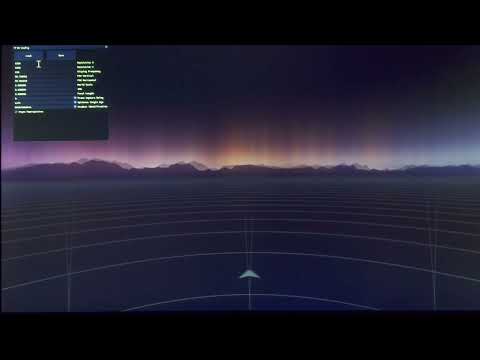
Switching From VRto3D (+WibbleWobbleReshade) to WibbleWobbleVR
- You cannot run both of these virtual HMDs at the same time
- If you used WibbleWobbleReshade, delete
dxgi.dllin yourSteam\steamapps\common\SteamVR\bin\win64folder - Open SteamVR prior to installing WibbleWobbleVR
- On the SteamVR Status window, select
Hamburger Icon->Settings - Go to the
Startup / Shutdowntab - Select
Manage Add-Ons - Turn vrto3d
Off - If going back to VRto3D, reverse these steps and turn WibbleWobbleVR
Off
Updating from older WibbleWobbleVR versions
- Uninstall previous versions of WibbleWobbleVR by running
Uninstall.bat(NOT as admin) in theWibbleWobble\WibbleWobbleVRfolder or deleting theWibbleWobbleVRfolder from yourSteam\steamapps\common\SteamVR\driversfolder - Delete your main WibbleWobble folder
- If you used WibbleWobbleReshade, delete
dxgi.dllin yourSteam\steamapps\common\SteamVR\bin\win64folder - Delete your
%APPDATA%\..\LocalLow\PHARTGAMES\WibbleWobblefolder to reset your settings - If using surround, you may still need to keep your manual Lightboost overrides (skip below)
- Remove any custom resolutions you may have created for WibbleWobble using CRU or Nvidia Control Panel
- Disable StrobeLight app if you were using it - it’s no longer needed for 3D LightBoost
Initial WibbleWobble Setup
- Download and unzip the latest beta:
- Register WibbleWobble:
In Windows Explorer, right-clickWibbleWobbleClient/Register.batand select Run as administrator. - Install Emitter Driver:
(Only needed if you don’t have 3DVision installed)
Run the Nvidia installer
WibbleWobble\WibbleWobbleClient\3dvisioncontrollerdriver.exe - Disable Desktop Scaling: Disable desktop scaling in Windows settings. WibbleWobble and some games are not DPI aware, and scaling can cause window size issues. (For example, Assetto Corsa.)
- Open Steam and install SteamVR if not already installed.
- Navigate to where you extracted WibbleWobble, open the WibbleWobbleVR folder, and copy this 2nd
WibbleWobbleVRfolder to yourSteam\steamapps\common\SteamVR\driversfolder.
SteamVR Setup
- Open Nvidia Control Panel
- Under
Manage 3D Settingstab, set Global settings:- Set
Low Latency ModetoUltra - Set
Max Frame Rateto match your target refresh rate - Set
Power Management ModetoPrefer Maximum Performance - Set
Vertical SynctoUse the 3D application setting
- Set
- Under
Set up stereoscopic 3Dtab, uncheckEnable stereoscopic 3Dand clickApply - Under
Set up G-Synctab, uncheckEnable G-Syncand clickApply - Under
Change resolutiontab, ensure your monitor is set to a 3DVision compatible resolution & refresh rate (generally 120Hz or 100Hz)
- Under
- Open Windows Display Settings
- Set your 3D monitor as the primary display
- Set it to
Show only on #(where # is your 3D monitor number) this helps with 3D stability
- Launch SteamVR
- WibbleWobbleVR Settings
- Things will look wrong until you finish configuration and restart SteamVR/WibbleWobble
-
- Press
Shift + ENDto bring up the WibbleWobble menu
- Press
- You have to press
Enterkey to apply any WibbleWobble setting - Press
Shift + HOMEto (un)focus WibbleWobble (necessary to see anything else on desktop) - Select
Client Config- Set
Window Size X/Yfor your Fullscreen Desktop Resolution - DO NOT MODIFY Other Settings unless you are using something other than 3DVision
- Click
SaveandXto close the window
- Set
- Select
VR Config(Skip for VRto3D Integration)- Set
Resolution Xto your desired horizontal render resolution (1920 recommended) - Set
Resolution Yto your desired vertical render resolution (1080 recommended) - Set
FoV Horizontalto your desired FoV (90.0 recommended) - Leave
World Scaleat 1.0, it does nothing - Set
IPDto0.1(This is Depth; Higher=Stronger) - Set
Focal Lengthto2.0(This is Convergence; Lower=Stronger) - Click
SaveandXto close the window
- Set
- Select
Emitter Config- Click
Nvidia Config- Select
Enabled - Select
Auto Config - If you have an official 3DVision monitor, it should switch to 3D mode now
- Click
SaveandXto close the window
- Select
- Click
SaveandXto close the window
- Click
- Press
Shift + ENDto close the WibbleWobble menu - Use
Shift + HOMEto focus/unfocus WibbleWobble when starting VR games/mods - Use
Shift + ,to flip eye output if needed
- Close the
SteamVR Statuswindow to completely exit out of things
Playing a Game
- Make your 3D monitor primary and disable all other monitors this will help with 3D stability
- Install VRto3D profiles and game profiles
- Extract the latest profiles into your
Steam\config\vrto3d\folder - Follow same instructions as VRto3D to install any game specific profiles you want to use
Ctrl + F10can be used to reload a game profile if one exists (useful when modifying hotkeys and depth/convergence/FoV)Ctrl + F7can be used to create/save a profile for the current game into yourSteam\config\vrto3d\folder
- Extract the latest profiles into your
- Start the Game:
Launch the game in VR mode - Confirm entering VR (NOT ALL GAMES) If you see a black screen chances are the game is waiting for you to confirm that it should enter VR.
- SHIFT + HOME will unfocus the WibbleWobble window allowing you to ALT + TAB to find the window for the game and click the required buttons.
- This is finicky so you may need to switch between a few different windows to get a different window in focus.
- SHIFT + HOME again will re-focus the WibbleWobble window once you have confirmed entering VR mode.
- Sometimes it’s enough to just focus the game window with ALT + TAB and hit enter to confirm the option.
- Configure or Play:
- Once launched, you can adjust WibbleWobble’s settings or begin playing.
- VR specific settings such as resolution, fov, etc.. can be changed inside VR Config.
- FoV & Focal Length may not update properly when a game is running and require you to restart the game or mod
- Changes to Resolution require a SteamVR restart; this is an OpenVR limitation.
- Some games prevent the automatic focus change to the WibbleWobbleUI; if you press SHIFT + END and nothing happens or the UI draws and you can’t control it; focus the WibbleWobble window with ALT + TAB to regain control.
- Maintain Focus on the Game Window:
The game window should remain in focus. If the WibbleWobble window is in focus when the WibbleWobble UI is closed, ALT + TAB until the game window is in focus. - ReCenter the view:
For some VR mods/games, you may need to unfocus WibbleWobble, Alt+Tab to the SteamVR Status Window, click the Menu button and select
Recenter - OPTIONALLY: Toggle the overlay focus: Press “SHIFT + HOME” to toggle the focus on the overlay. You can do this to be able to use the mouse accurately within the game. There is a mouse cursor fix coming to remove the need to do this.
- Don’t close the WibbleWobble window WibbleWobble will currently not recover if you close the WibbleWobble window. You must restart the game if you do this. Use the SHIFT + / key to toggle the overlay focus if you need to get around the desktop.
Troubleshooting
- If you experience ghosting, try turning on your monitor’s
LightboostorUltra Low Motion BlurorULMBfeature. You may have to enable 3DVision in Nvidia Control Panel for this setting to be available - If your 3D Emitter doesn’t activate, try the following:
- Unplug/replug the emitter
- Toggle 3DVision On/Off
- Restart SteamVR
- If you are getting too much wobbling, try the following:
- Toggle VSync off or on in-game
- Close all other applications
- Or try rebooting
- If WibbleWobble settings are really messed up, delete your
%APPDATA%\..\LocalLow\PHARTGAMES\WibbleWobblefolder
Changelog
Beta 7
- Add external input for WibbleWobbleClient
- Cleanup internal IPC
- Re-add DWM Flush option, but it’s not recommended (worse flicker)
- Update submodules (remove user store keys)
- 7.2
- Attempt fix glasses desync
- Restore BeamRace Sync option (will have worse flicker)
Beta 6
- Add
Ctrl + F7hotkey to save a game profile - Fix Extended Monitors (Surround requires manual custom 3D resolutions before using WibbleWobble)
- Improve/Reduce flickering/wobbling via adding Nvidia Reflex sync, code cleanup, and increased priority
- Move Eye Swap option under Emitter settings and remove
Ctrl + ,hotkey - Create Log file under
Steam/logs/wibblewobble.txt - Add support for Midlife Crisis’ UE3D
- Fix display resets while editing settings
- Fix 3D not disabling when exiting WibbleWobbleReshade
- Force OpenXR runtime to SteamVR
- Fix WibbleWobble GUI overriding vrto3d profile loaded settings
- Removed Client Settings: Frame Rate Limit HZ, DWM Flush, Beam Race Sync, Beam Race Scanline Count, Elevate Process Priority. These could adversely affect flickering
Beta 4
- Change Focus hotkey to
Shift + Hometo be more international keyboard friendly - Automatically set SteamVR chaperone boundary and other settings to skip the VR setup
- Automatically load VRto3D IPD/Focal Length/FoV settings and user hotkeys to jump to other settings
- Add
Ctrl + F10hotkey to reload a game profile - Implement Native 3DVision support without GPU drivers
- Fix Nvidia emitter wakeup
- Add option to automatically load official monitor & emitter timings
- Fix Full vs Half aspect ratio
- Render full resolution per-eye in VR
- Add VR option to disable Async Reprojection
- Add RealVR link to allow normal controls